

Tree Folder Export for Adobe Lightroom Classic
Available in English and Italian.
Export your selected photos and preserve their original folder structure. Tree Folder Export recreates the subfolders you need at your destination, even when you’ve filtered your selection by star rating. Use the folder open in Lightroom as your starting point, or choose a source folder manually.
One selection, two deliveries
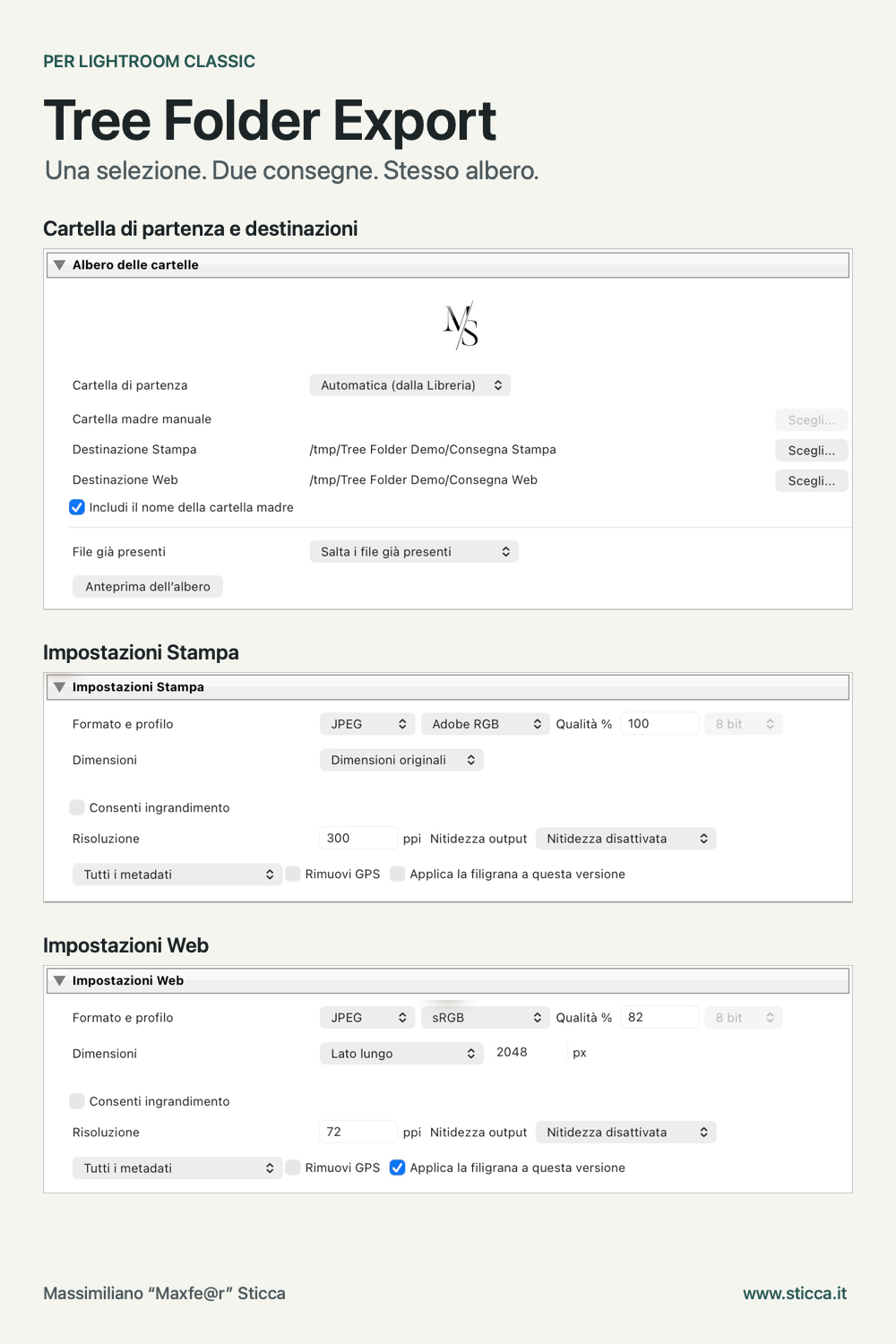
With Print + Web Delivery, export the same photos to two separate destinations, each with its own settings and the same folder structure. For example, create full-resolution Adobe RGB JPEGs for print and 2048-pixel sRGB JPEGs for the web, with a watermark applied only to the web copies.
Format and colour. Choose JPEG, TIFF or PSD, plus PNG, AVIF and JPEG XL where supported by Lightroom Classic. Colour spaces include sRGB, Adobe RGB, ProPhoto RGB and Display P3.
Image sizing and sharpening. Resize by long or short edge, fit within width and height limits, or scale by a percentage of each photo’s cropped dimensions. Choose output sharpening for screen, matte paper or glossy paper.
Metadata, GPS and watermarking. Set them independently for Print and Web. Keep captions and keywords while removing GPS coordinates from the web copies.
Preview and export summary. Check the destination tree before exporting, then see which files were saved, skipped or need attention.
If you interrupt an export, run it again with Skip Existing Files. When original filenames are unique and renaming is off, Tree Folder skips rendering print files that are already in place and can go straight to the missing web copies.
Download Tree Folder Export 1.1.3. Extract the ZIP and select TreeExport.lrplugin from File → Plug-in Manager → Add. You’ll find Tree Folder in Lightroom Classic’s Export To menu.
Created by Massimiliano “Maxfe@r” Sticca.
-
Unzip the download and move the TreeExport.lrplugin folder to a location where you plan to keep it.
In Lightroom Classic, go to File → Plug-in Manager → Add and select TreeExport.lrplugin.
Select your photos, open Export, and choose Tree Folder · Delivery or Tree Folder · Print + Web Delivery from the Export To menu.
-
Updating the plug-in
Same location: If you replaced the old TreeExport.lrplugin folder in the same location, open File → Plug-in Manager, select Tree Folder Export, and click Reload Plug-in.
New location: In Plug-in Manager, select the old Tree Folder Export entry and click Remove. Then click Add and select the new TreeExport.lrplugin folder. Remove unregisters the old copy and leaves its files on your computer.